
Alerts Hub
The Alerts Hub (under Tools in the sidebar) keeps the team informed without anyone logging in: recurring performance reports and threshold alerts on your metrics, delivered to Slack, email or a webhook.
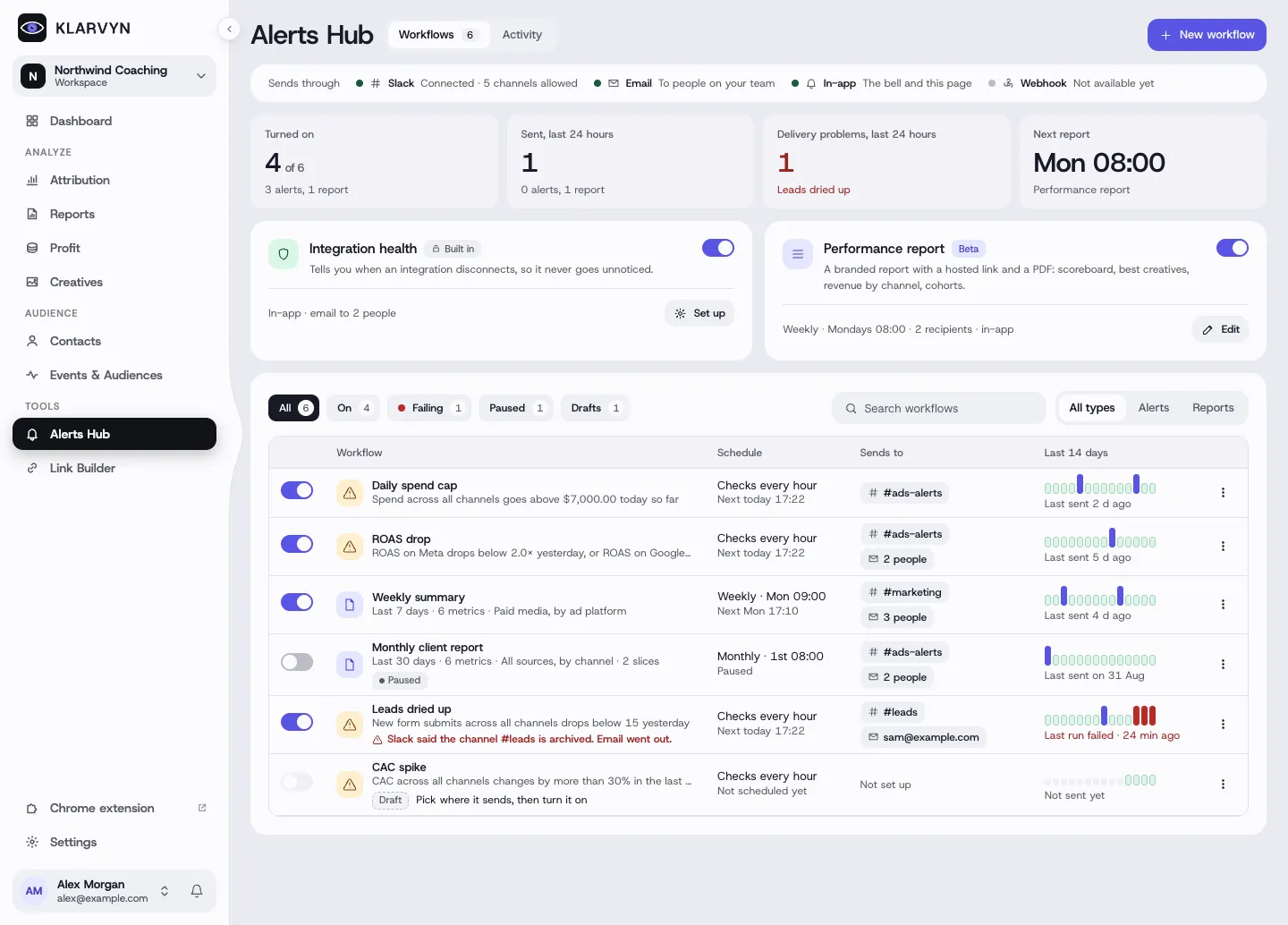
The hub has two tabs: Workflows — every alert and report, with its schedule, where it sends, and a mini history of the last 14 days — and Activity, a log of every run and any delivery problems. Click New workflow to start from a template.
Alerts
Section titled “Alerts”Build rules like “When Meta ROAS drops below 2 in the last 24 hours” — any channel, any metric (spend, CTR, ROAS, CAC, calls booked, trials started, and even your saved custom columns), combined with AND/OR. Ready-made templates cover the common cases: Budget alert and ROAS drop alert. Alerts run in real time or on an interval.
Scheduled reports
Section titled “Scheduled reports”The report editor assembles a recurring report: what it shows (paid media, all sources or specific channels, with UTM filters and attribution model), the metrics to include, breakdown (totals, per platform or per channel), when it sends (daily/weekly/monthly, day and time) and who gets it. You can send one report to every destination or a slice per team — each routing row picks its channels, destination and detail level (full / compact / summary).
Performance report (Beta)
Section titled “Performance report (Beta)”A designed, brandable flagship report — scoreboard KPIs, executive narrative, best creatives with thumbnails, per-platform winners, revenue mix, products, geography, devices, and acquisition cohorts with LTV. Drag sections to reorder, pick cadence (weekly/monthly/quarterly), and every send includes a hosted report link + PDF. The share link can be password-protected. Your logo comes from Settings → General; brand colour and footer from Settings → Branding.
Integration health
Section titled “Integration health”A built-in notification that tells you when any integration disconnects — so a dead CRM connection or expired ad-platform token never goes unnoticed. Just pick email recipients and/or a Slack channel.
Good to know
Section titled “Good to know”- Save first, then activate — the on/off toggle stays disabled until the workflow is saved and has at least one real destination.
- Slack delivery needs two steps: connect Slack and choose the allowed channels, both under Settings → Integrations. See Connect Slack.
- Email recipients are workspace team members — invite people under Settings → Team before adding them as recipients.
- Use Send a test before activating — the preview shows the exact message Slack or email will receive. Send now sends a real one immediately.