
Contacts
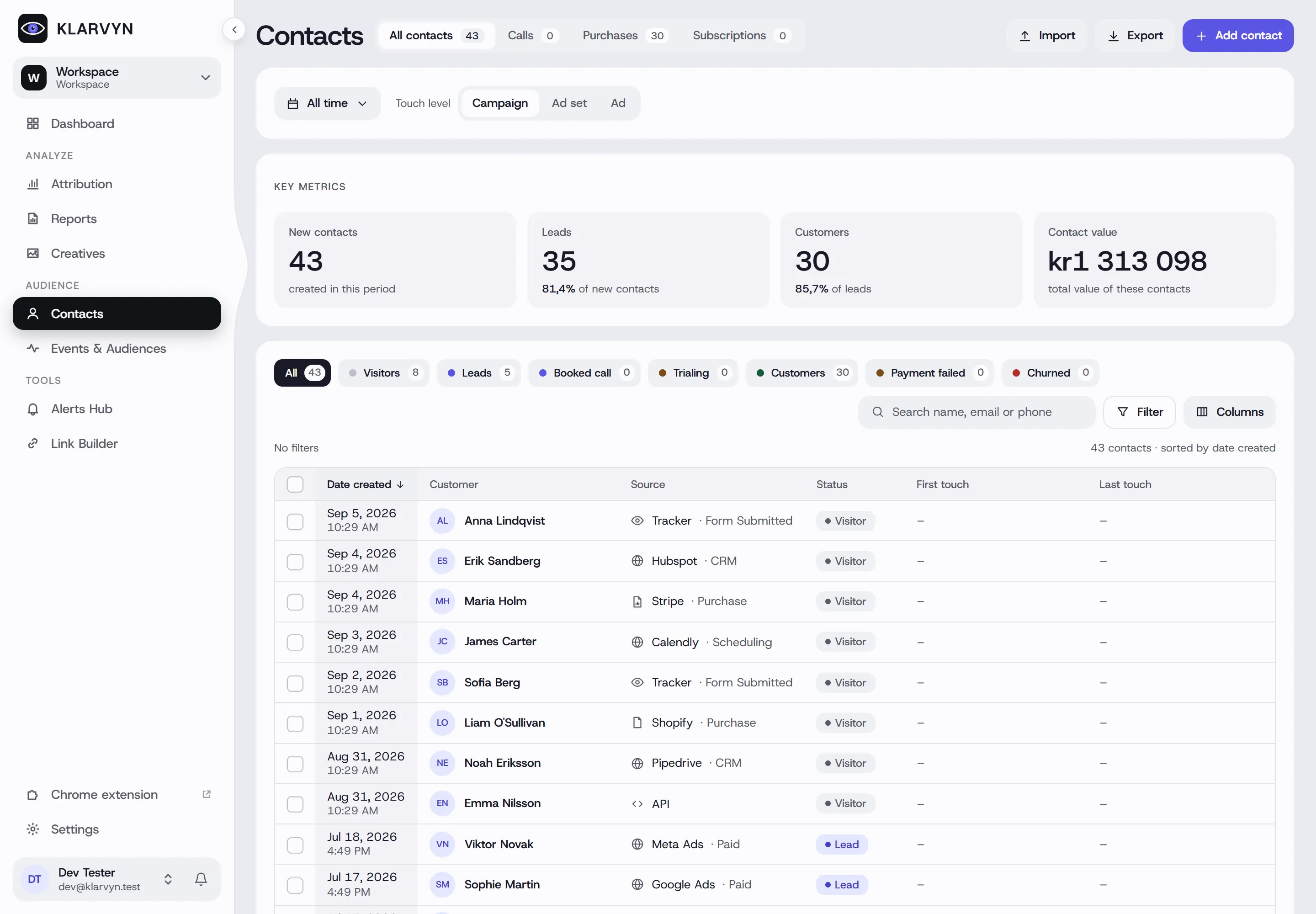
Contacts answers the question “who are the people in my funnel, what did each one do, and which campaign gets credit for them?” — a person-level ledger where every row carries first-touch and last-touch attribution. You’ll find it under Audience in the sidebar.
The four tabs
Section titled “The four tabs”-
All contacts — everyone, with source, status, first/last touch and total value. Status pills along the top filter by lifecycle: Visitors, Leads, Booked call, Trialing, Customers, Payment failed and Churned.
-
Calls — booked calls with status (showed, no-show, cancelled) and the attribution that produced each booking.
-
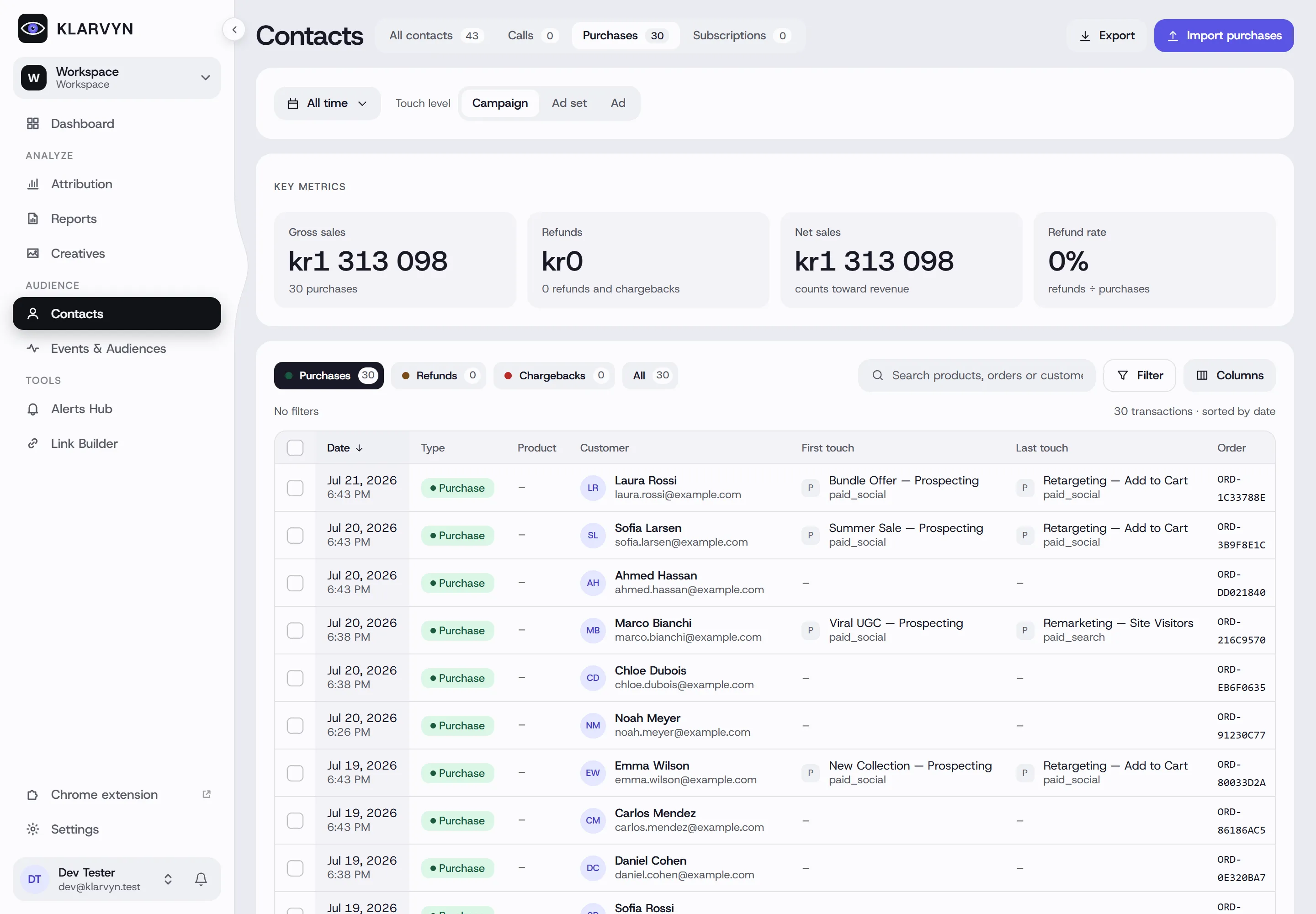
Purchases — one row per purchase with product, order and value, plus key metrics for gross sales, refunds, net sales and refund rate. Pills split Purchases, Refunds and Chargebacks.
-
Subscriptions — a per-payment ledger, or switch to Active subscriptions for one row per contact with MRR.
Every tab has the date picker, a Touch level switch (Campaign / Ad set / Ad — remembered per workspace), search, the Filter builder (nested AND/OR conditions on products, calls, price, tags, events, channels and more) and the Columns picker.
The contact card
Section titled “The contact card”Click any row to open the full contact card. Its tabs:
- Timeline — the complete journey, grouped into readable chapters: page views with dwell time, form submits, ad clicks, calls, deals, payments.
- Deals, Calls, Transactions — the CRM and payment history.
- Details — profile, consent status, CRM IDs, linked identities (what identity stitching merged), and First and last touch — the first touch and the last ad click side by side.
- Conversions — every conversion event sent to ad platforms for this contact, with delivery status.
- Audiences — which synced audiences the contact is in, with a full membership history.
- Notes — team notes. Log — every event, filterable.
You can add tags, merge duplicates (Merge contact moves all events, emails and phones), edit profile fields, and purge a contact from all synced audiences.
Importing and exporting
Section titled “Importing and exporting”Import brings in historical contacts (with backdated ad clicks — UTM and
kv_ columns are auto-detected) and Import purchases backfills orders.
Long imports run in the background, and every import can be undone from
Settings → Imports & exports. Export downloads the active tab as CSV.
Good to know
Section titled “Good to know”- A “–” in first/last touch means “unattributed” — the visit had no ad click or tracked link. It’s not an error; it flips to a real channel if a later import backfills the click.
- Both touches are always shown on the contact (first touch and last ad click) — the Touch level switch changes granularity, not the model.
- Importing historical contacts with their CRM IDs is what lets deals and calls from your CRM match up — do it right after connecting a CRM.
- Export follows the tab and date range, not the search box or filters.